Appearance
OBS Setup
- Turn on the projector then the TV
- Wait till you see the logo on the screen before moving on
- Turn on the PC
- Check the screen resolutions of the two monitors
- Both monitors should be 4k (3840x2160)
- If the resolutions aren't correct and you can't change them or the monitors aren't in the right order, try unplugging the HDMI cord from the left monitor for about 10 seconds then plugging it back in
- Both monitors should be 4k (3840x2160)
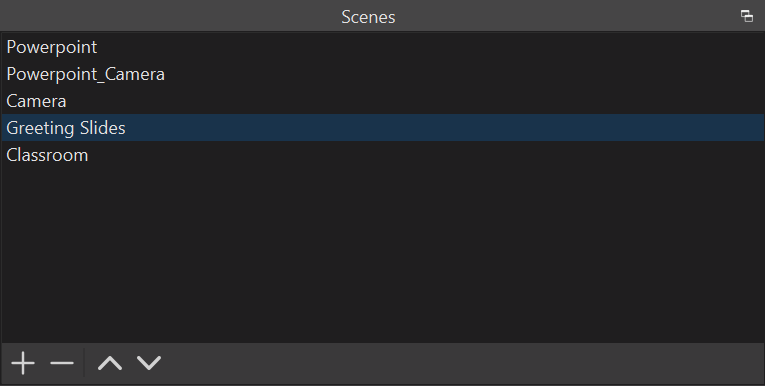
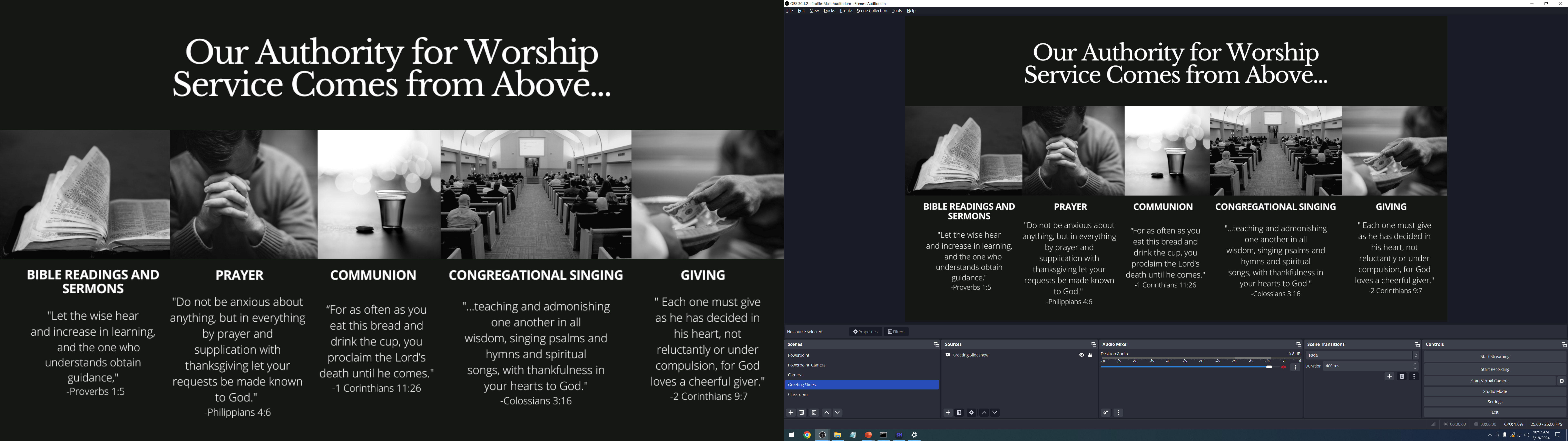
- Open OBS and change the scene in the bottom left to 'Greeting Slides'
- Right click the preview in OBS and go to 'Fullscreen Projector (preview)' -> 'EPSON' (left monitor)
- The name of the monitor may not always say 'EPSON' in it
- Check the position of the monitors to choose the correct one. It will be the one at position -3840, 0
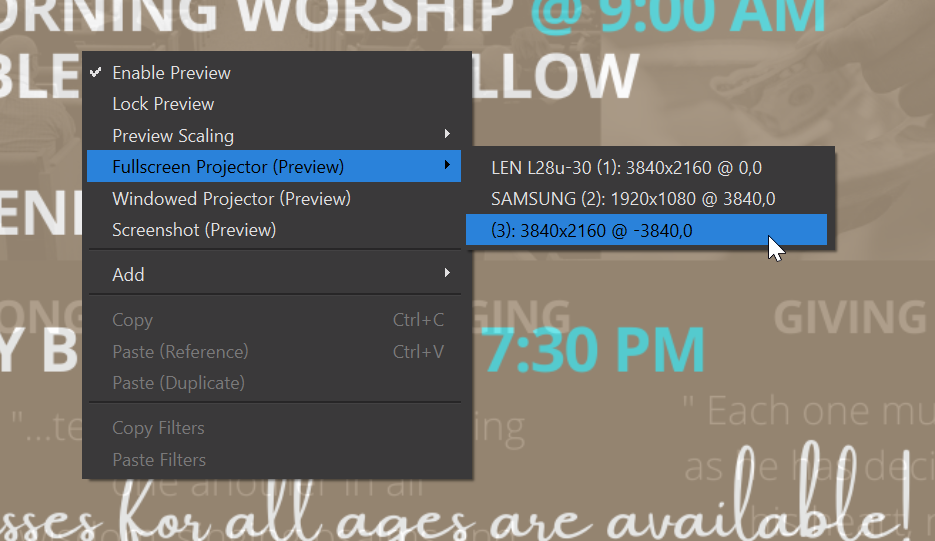
- The name of the monitor may not always say 'EPSON' in it
- The greeting slides should now be showing on the left monitor
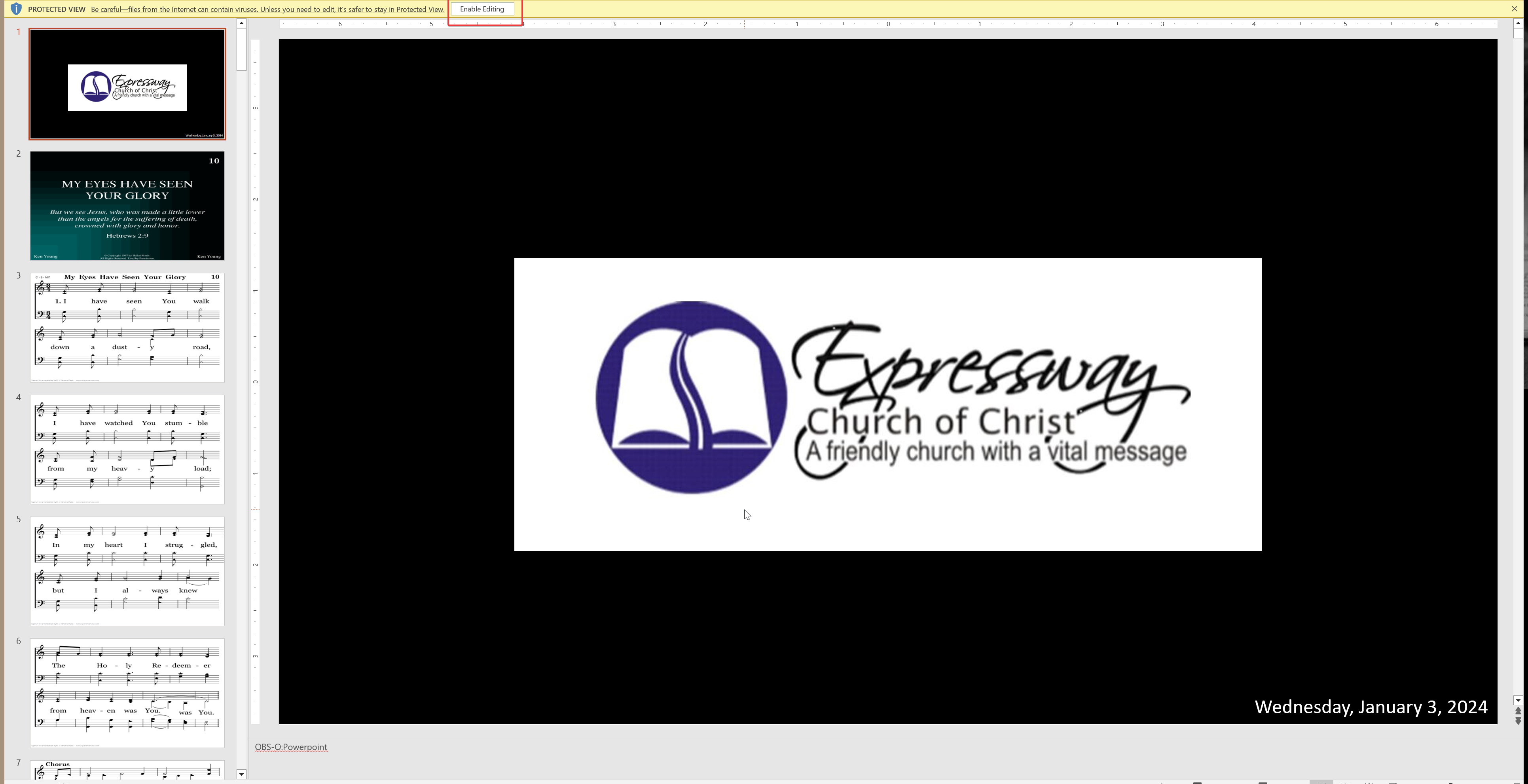
- When it is time to get the PowerPoint up, open the service's PowerPoint on the middle monitor
- Make sure the preacher's slides are in there if they need to be
- Make sure to click 'Enable Editing' near the top
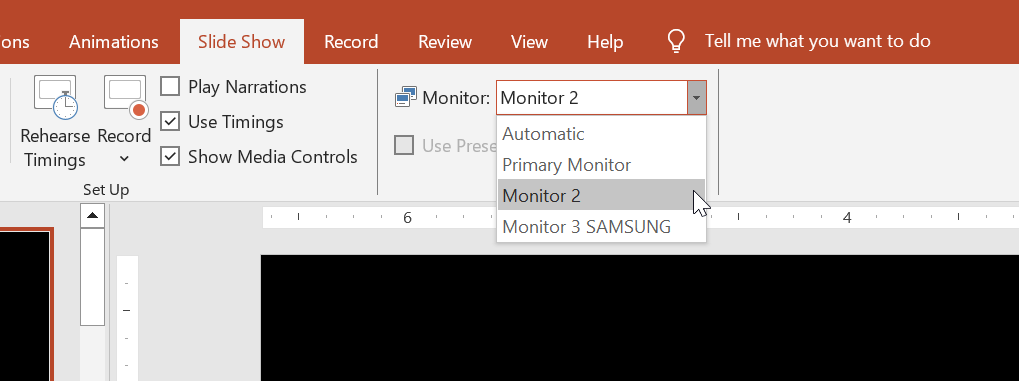
- Double check which monitor the PowerPoint will present on when started (Slide Show -> Monitor)
- Should be the EPSON monitor (left monitor or Monitor 2)
- Blank the projector
- Click in the left monitor and hit the ESC key to close the preview there
- Click back in PowerPoint and hit F5 to it and minimize PowerPoint
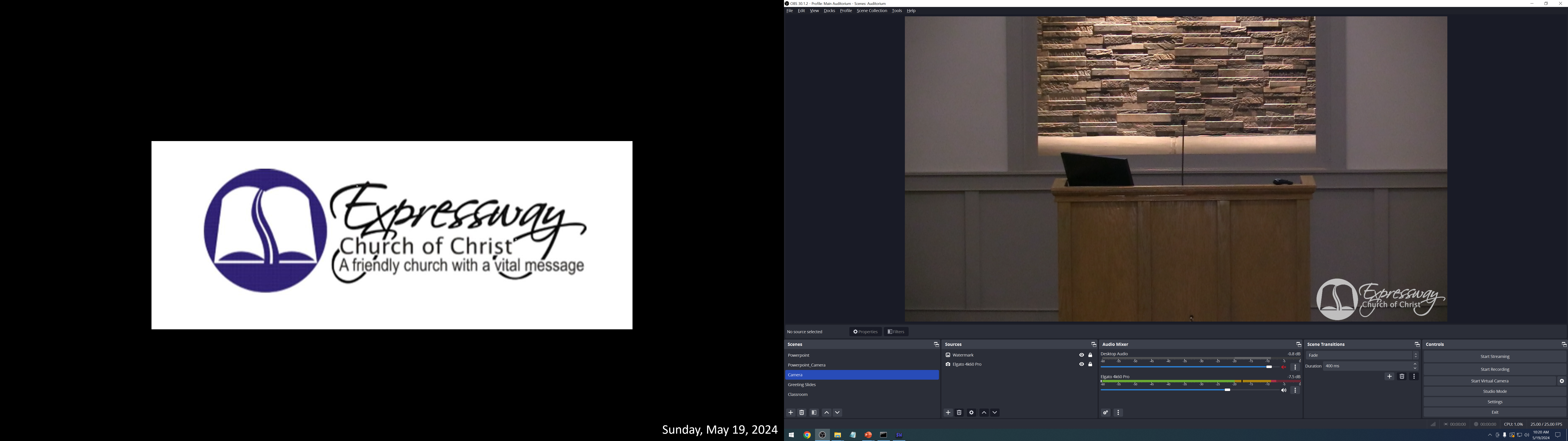
- In OBS, change the scene to 'Camera'
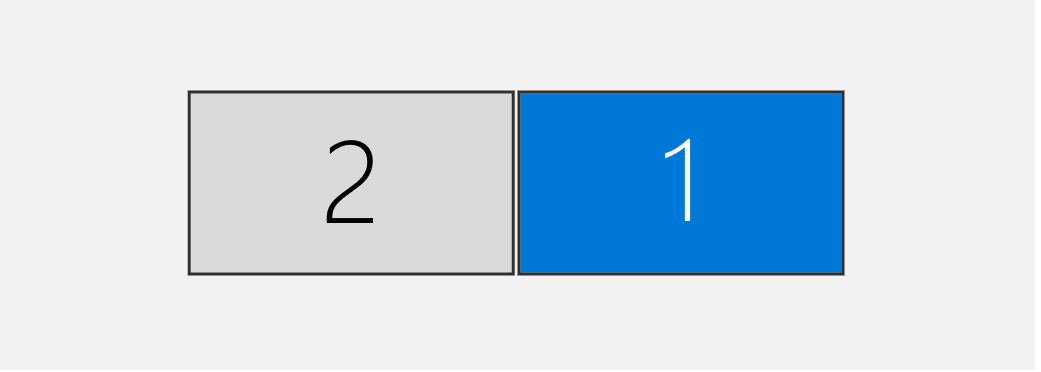
- This is how the monitors should look at the beginning of services
- This is how the monitors should look at the beginning of services
- Click in the left monitor to focus the PowerPoint then hide the cursor off screen
- This is so any animations or fancy transitions work during the sermon
- Use the up (back) and down (forward) arrow keys to advance the slides
Troubleshooting
- The monitor resolutions are wrong and I can't change it!
- This typically happens when the HDMI splitter doesn't recognize the projector as the main output for resolution
- Unplug the HDMI cord from the left monitor for about 10-20 seconds then plug it back in
- The camera freezes in OBS when it switches to the PowerPoint scene
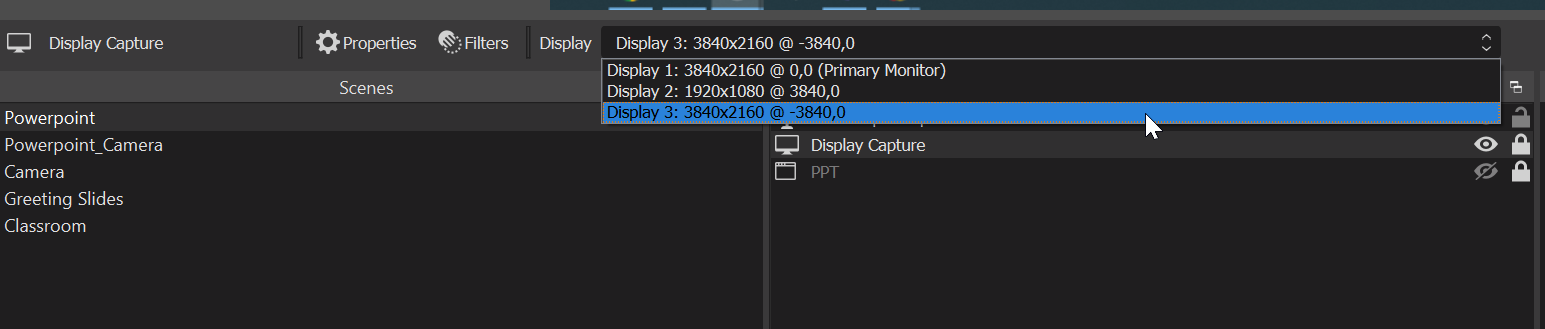
- The display that the PowerPoint scene is capturing is wrong
- Select the 'Display Capture' source in the 'PowerPoint' scene and change the monitor it's capturing with the dropdown
- Select the other 4k monitor that is not the Primary Monitor
- The PowerPoint and Camera scene is showing an infinite loop!
- Same solution as above
- The PowerPoint is advancing two slides at a time!
- The PowerPoint and OBS integration requires special templates of the PowerPoint that operate in Kiosk mode.
- If you don't have time to re-make the PowerPoint with one of the template, close OBS and advance the PowerPoint normally.